Microsoft Windows 11 comes with OneDrive, and they have been pushing its "backup local folders" more aggressively by turning it on by default...
Especially since now it's very difficult to use Windows without a Microsoft Account, the chances you're experiencing your saves disappearing or the ability of resuming the last save are larger than ever!
This happens because OneDrive isn't actually backing up your local files but, instead, it uploads your files and removes some of them from your local storage!
Yes, you read me right! Instead of uploading a copy and being happy with it, letting you own your files locally, it is uploading your files and removing whatever it decides isn't "that important" to keep locally, to "free up space" on your local drive without asking you for it!
Of course, it all comes to create dependency on cloud storage by potentially holding your files hostage in the future, if you don't upgrade to a paid subscription. This also means you're much more likely to blow out your free allowance pretty quickly, therefore being more likely to upgrade if you're unaware of what's happening and you're not yet a Microsoft Office or OneDrive subscriber.
That being said, you can solve this issue (you usually only need to do this once but I noticed that sometimes my computer will mysteriously forget my choice and I had to do it a few times for the past year or two, sadly, or for new subfolders) by right clicking the folder you want to always keep locally and to select (or be sure it's selected) "Always keep on this device".
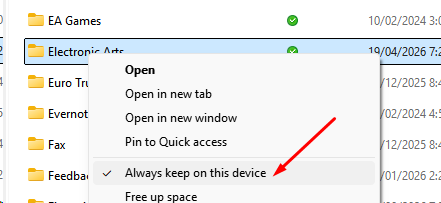
The screenshot above shows how it's done with the Electronic Arts folder inside Documents (where your Sims 3 and Sims 4 Saves, Mods and CC stay), but you can apply the same method to any folder or file you'd like to be sure isn't removed from your computer.
I hope this tutorial helps. Please let me know in the comments section below (if you're logged in). 😇